How to bulk-edit your Square service library
You have prices to update, a service menu to sort out, or a list you just want to review. The information is already in Square, but you can’t export your service library. So you open a service, change its variations, save, and start again with the next one. One by one. That’s a lot of clicking just to work through your own list.
Get your services into a spreadsheet and get on with the work you need to do. The free Service Catalog Manager lets you download your library, edit it in one place, and check your changes before saving. Use your existing Square account. There’s no new account to create.
We’ll work with a haircut that has two variations. We’ll raise both prices by $5, then add an Extra long hair variation. You can skip the new variation if you only need to change prices.
What you can do in Square itself
For a small change, you can edit the service directly in Square:
- Open your Square Dashboard.
- Go to Items & services → Items → Service library. Your menu may say Items & menus or Items & inventory.
- Open the service you want to change.
- Edit the service or its variations.
- Save. Repeat for the other services.
Square also imports service lists from CSV files and webpage links. Its help page recommends limiting each import to 30 services. If you only need to bring in a short list, check that option first.
Service Catalog Manager lets you update your existing library or import more than 30 services at once. Start with an export for existing services, or a blank template for a new list.
Square’s service library and import instructions
1. Connect Square and load your catalog
- Open Service Catalog Manager.
- Select Connect Square.
- Sign in to the Square account you want to use.
- Review the permissions and authorize the connection.
- Wait for the catalog import to finish.
Your services appear in a table. Expand a service to see its variations, prices, and durations. Use this table to find and select services. You’ll edit them in the downloaded file.
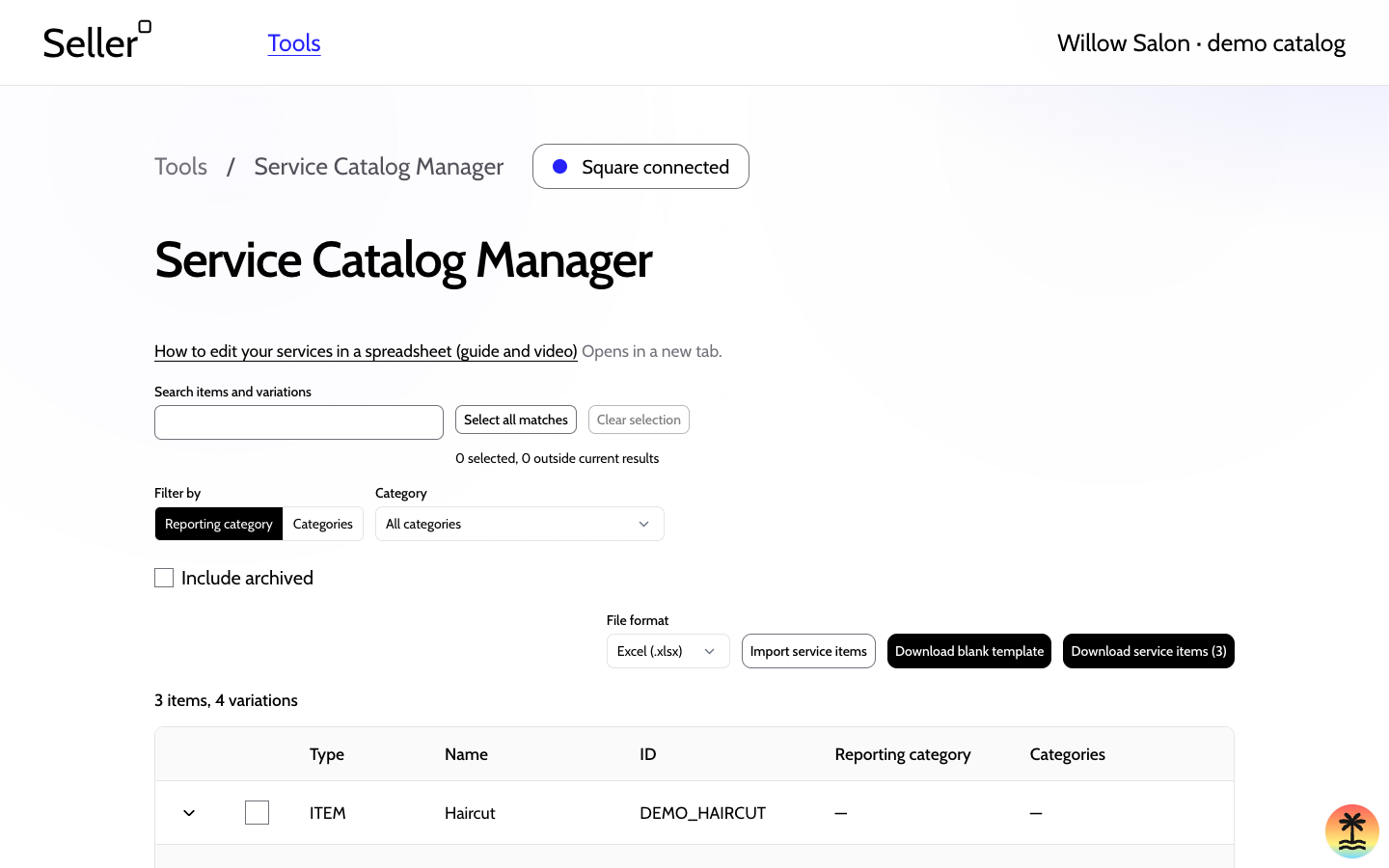
The pictures and recording use a sample salon catalog.
2. Download the services you want to edit
- Search for a service or variation name. You can also filter by category.
- Select the checkboxes beside the services you want. Select all matches includes matching services on other pages.
- Check the selection count. Services stay selected when you change the search or category filter.
- Choose Excel (.xlsx) or CSV (.csv) under File format.
- Select Download service items.
With no checkboxes selected, the download contains the current matches. With a selection, it contains the selected services. The button shows the count.
To download your whole active catalog, clear the search, choose All categories, and select Clear selection. Turn on Include archived to include archived services.
Watch: find and download a service
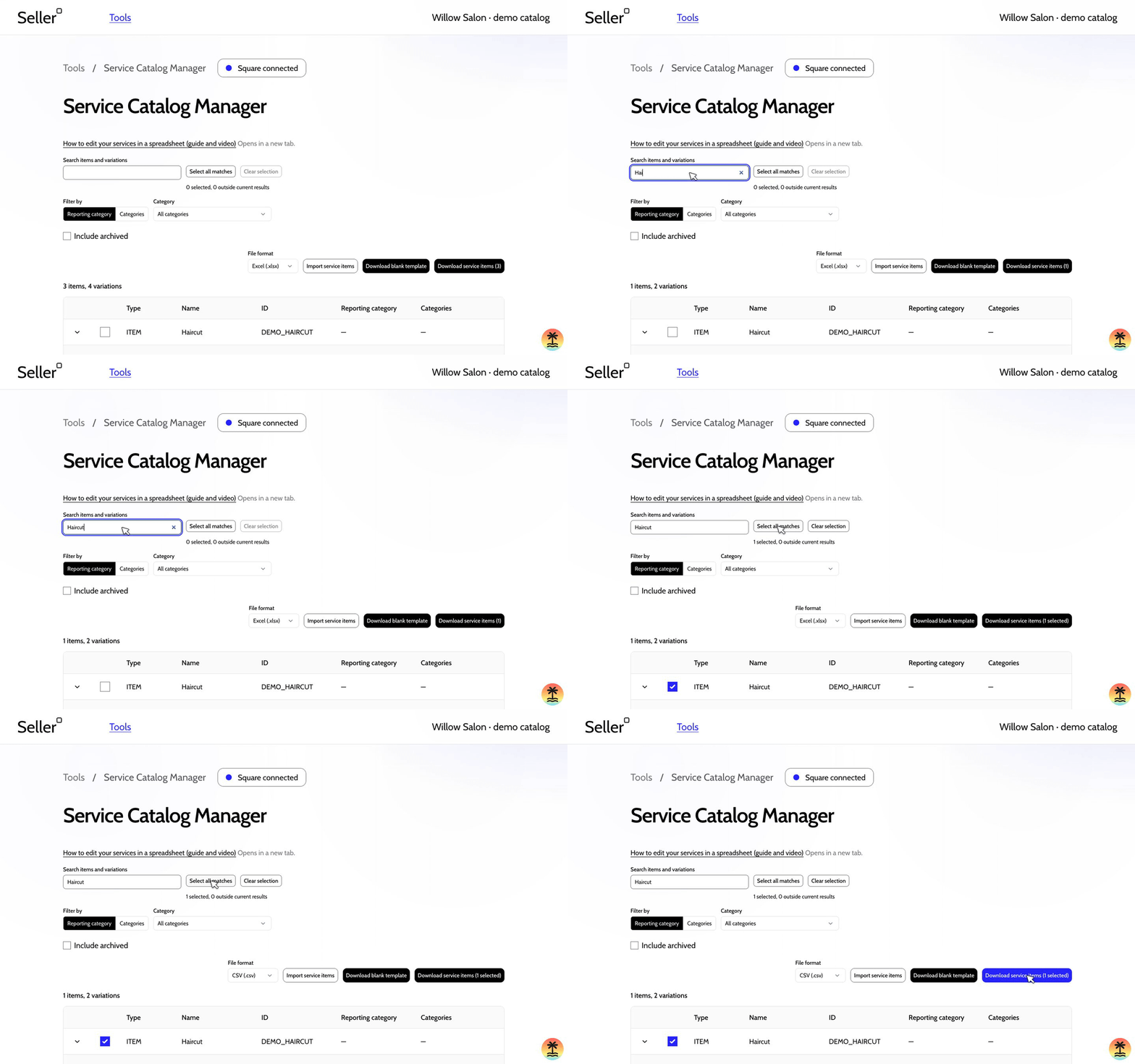
Close this section to hide the animation.
3. Edit a copy of the file
Keep the original download. Open a copy in Google Sheets. It’s free with a Google account and works well for editing your service list. Excel works too, if you already use it.
The exported spreadsheet includes instructions for each column above the service data. Read the Column tips before you edit. They explain what to enter and when to leave a cell blank.
Each service has an ITEM row, followed by its ITEM_VARIATION rows. Keep that order, along with the column names and positions. Keep existing id and item_id values: they identify the services and variations you’re updating.
Change the prices
For our haircut, change the two variation rows’ price_money cells:
| Variation | Current price | New price_money value |
Duration stays |
|---|---|---|---|
| Short hair | $45.00 | 50.00 |
45 minutes |
| Long hair | $65.00 | 70.00 |
60 minutes |
Enter amounts without a currency symbol. Durations use whole minutes, so a one-hour appointment uses 60.
You can also edit names, descriptions, booking availability, and the other fields explained in the column tips. Leave unrelated values as they are.
Keep the category assignments you need
Use category names that already exist in Square. This import cannot create categories.
Blank categories or reporting_category cells remove those assignments. To keep them, leave the exported values in place. You can also omit the relevant category column, as the file’s instructions explain.
Starting with a new service list?
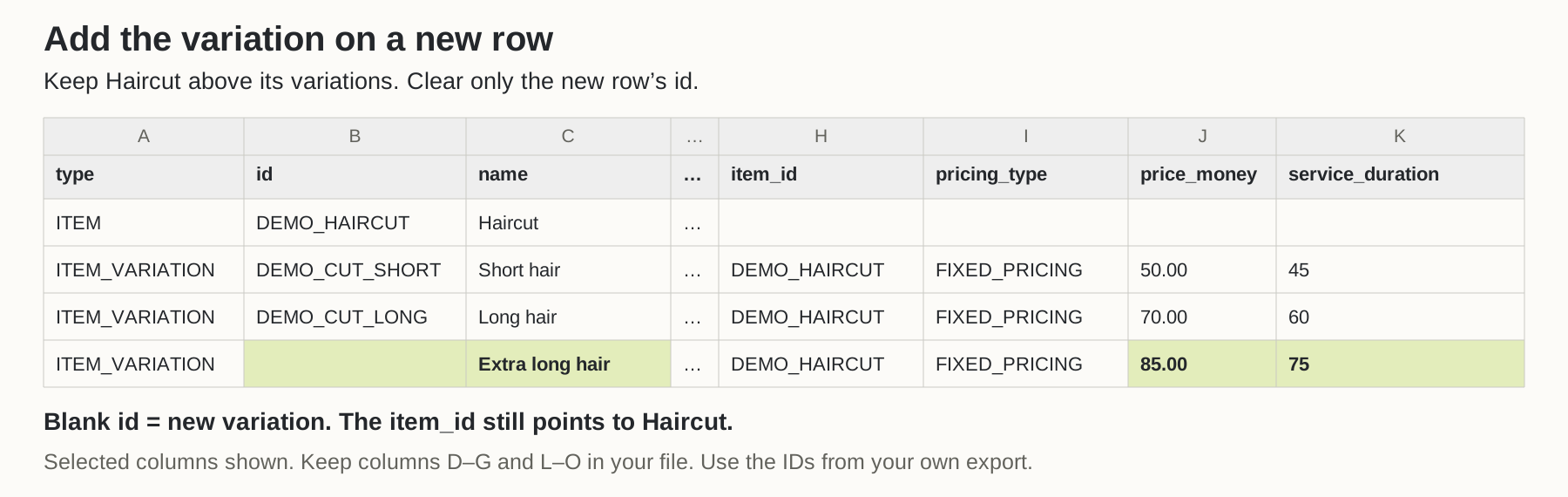
Use Download blank template instead of an export. Leave id blank for each new service and variation. For variations under a new service, leave item_id blank too.
An existing service works differently: a new variation needs that service’s ID. The next example shows how.
Add a variation under Haircut
Let’s add Extra long hair, at $85.00 for 75 minutes, to the same file.
- Copy Haircut’s Long hair
ITEM_VARIATIONrow. - Insert the copy below Haircut’s existing variations, before the next
ITEMrow. - Clear
idon the new row. Keep the existing rows’ IDs. - Keep
item_idset to Haircut’sidfrom your export. - Change
nametoExtra long hair. - Change
price_moneyto85.00. - Change
service_durationto75.
Keep type as ITEM_VARIATION and pricing_type as FIXED_PRICING. Check that the copied booking, selling, and location values suit the new variation.
4. Upload the file and check the changes
Once your edits are ready, download the sheet as CSV or XLSX from Google Sheets. In Excel, save it in either format.
- Return to Service Catalog Manager and select Import service items.
- Select your edited file under Choose a CSV or Excel file.
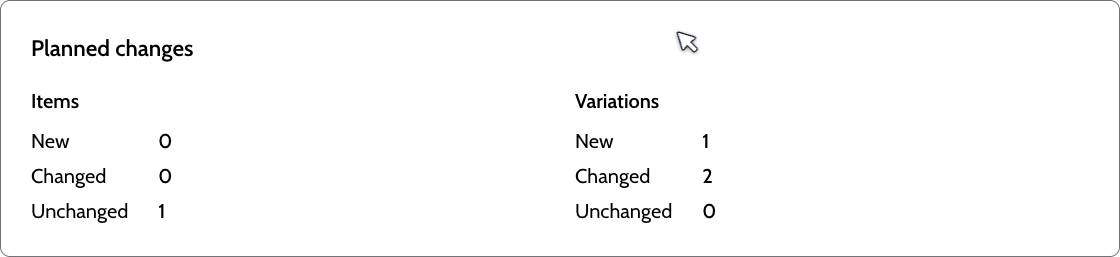
- Check the file preview and Planned changes.
The upload prepares a preview. Nothing saves to Square yet.
For this example, expect 1 unchanged item, 2 changed variations, and 1 new variation. There should be 0 new items: Extra long hair belongs to the existing Haircut service. If you changed only the prices, expect 0 new variations instead.
Watch: upload the edited file and check the preview
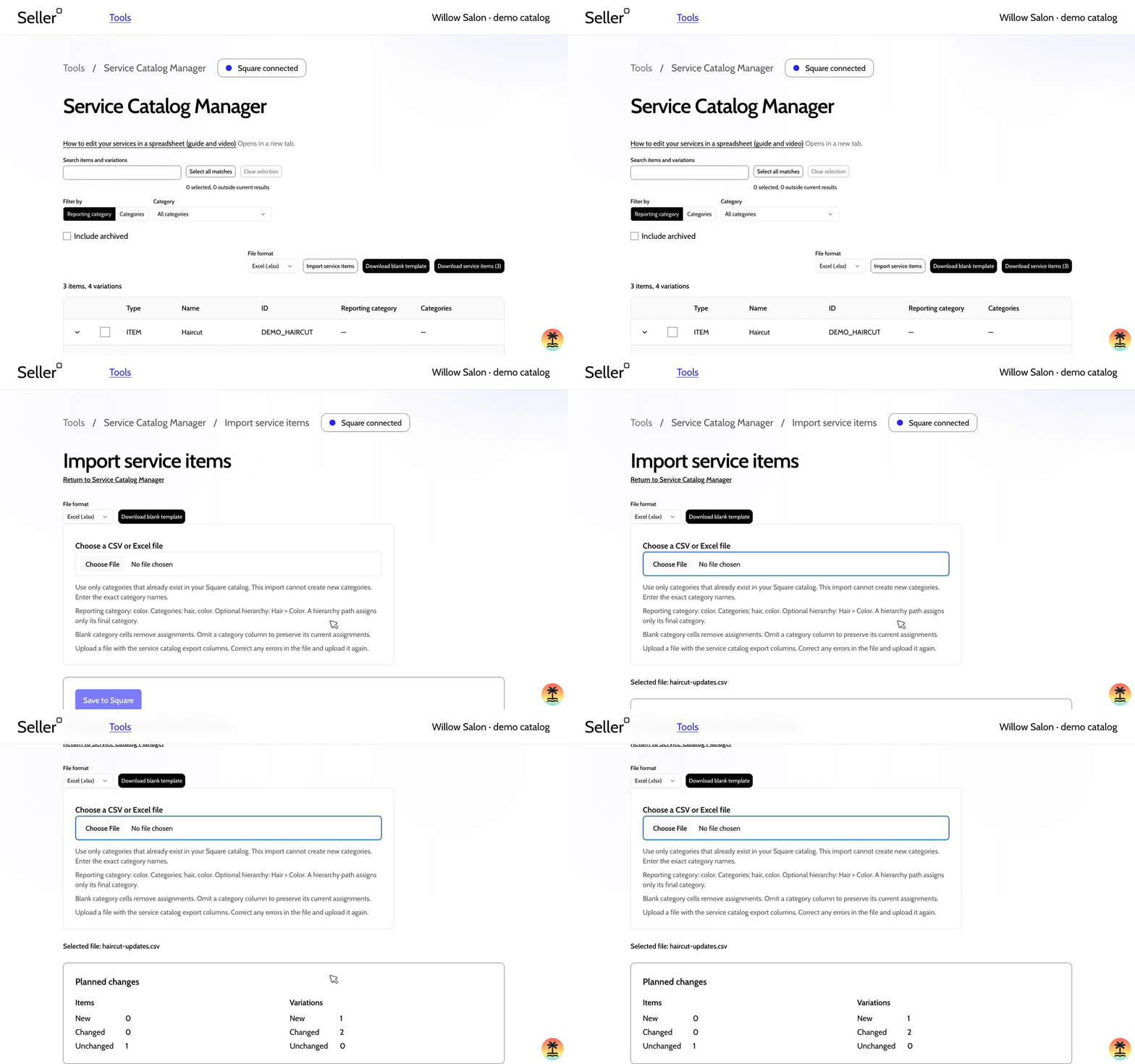
Close this section to hide the animation.
If the preview reports an error, use its row and column details to correct the file. Upload it again and check the preview. If the counts don’t match your intended changes, correct the file before saving.
5. Save and check the result
- Select Save to Square when the preview matches your changes.
- Wait for saving and the catalog refresh to finish.
- Return to Service Catalog Manager.
- Expand Haircut and check its variations.
Short hair should show 50.00 USD for 45 minutes. Long hair should show 70.00 USD for 60 minutes. If you added Extra long hair, check for 85.00 USD and 75 minutes on its new row.
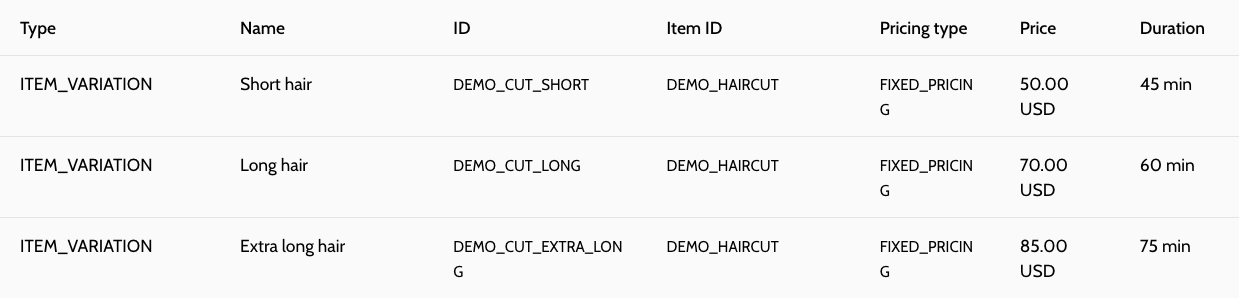
If saving pauses or reports a problem, follow the action shown on the page. Some changes may already have saved, so check the status before starting again.
Open the free Service Catalog ManagerWatch the full walkthrough
Follow the same example from the first download through the final check. The recording uses a sample catalog with simulated Square responses.
What feature should Square have but doesn't?
Let me know, and I'll do my best to build it.